
Add your first form
Before you start, install and activate the companion plugin on your WordPress site.
Add the page URL
Section titled “Add the page URL”- Sign in to the FormStatus app.
- Choose + New Form in the app header.
- In Form URL, enter the full URL of the page containing your form, then select Next.
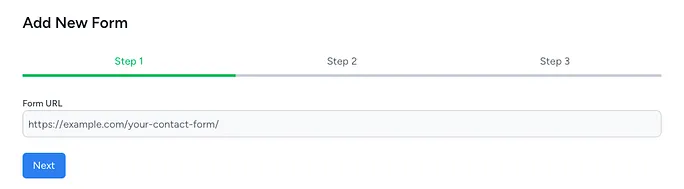
Use the page visitors see, rather than a WordPress editor or admin URL.
Select the form
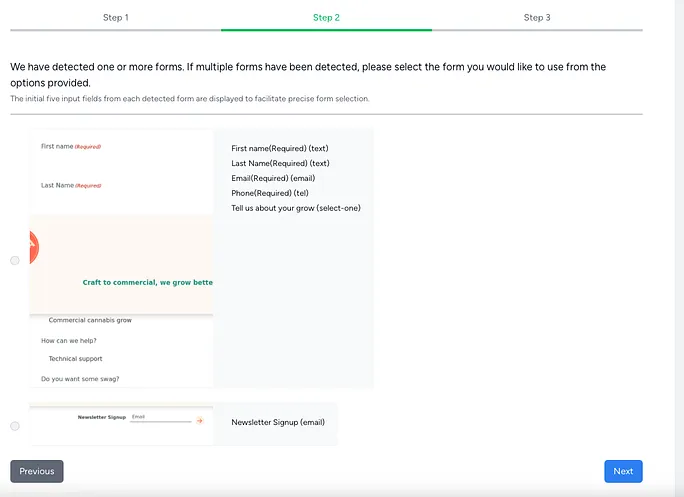
Section titled “Select the form”In Select Form, choose the form you want to monitor. If the page contains multiple forms, compare their previews and field labels before selecting Next.
Review form settings
Section titled “Review form settings”In Submit Form, review the Title and Notification email for form submission failure alert. Separate multiple notification recipients with commas.
Turn on Enable email testing if you want FormStatus to check the form’s notification email as well as its submission. This requires the companion plugin. The reminder includes a plugin download if you still need to install it.
Select Submit to save the form.
Run a test
Section titled “Run a test”Open Forms to find your saved form and run a manual test. FormStatus attempts to fill out and submit the form, then checks the expected notification when email checking is enabled.

Open the results when the test finishes. If a field has a specific validation requirement, use a field override to provide a suitable test value.
Choose a monitoring schedule
Section titled “Choose a monitoring schedule”In the form’s settings, choose daily, weekly, or monthly monitoring. Review notification settings so alerts reach the right people.