
Understand test results
Every test records a result. Open a form’s test log in the app and select an entry to inspect it.
What the checks mean
Section titled “What the checks mean”| Check | What to look for |
|---|---|
| Page Load | The form page is reachable. |
| Form Submission | Test data is accepted and the expected confirmation is detected. |
| Email Receive | The expected notification reaches the monitoring inbox when email checking is enabled. |
| SSL Check | The page has a valid HTTPS certificate. |
Passed
Section titled “Passed”The enabled checks completed successfully. Review the individual check details if you need to confirm exactly what was tested.
Failed
Section titled “Failed”At least one expected check did not complete successfully. Read the specific error before changing settings. A submission problem and a missing email need different investigations.
A dash can appear when a later check could not run because the page or form submission failed. Disabled means the check was not enabled. Pending means a result is still being collected. A Warning needs review even when submission succeeded, such as a mismatch between configured fields and the form on the page.
Inspect the details
Section titled “Inspect the details”Open the detailed test report to review Check Results, Form Details, Screen Recording, SSL Details, and Email Details. The available recording can help you see where a submission stopped. Form Details includes the check type and specific error details.
SSL details
Section titled “SSL details”Review whether the certificate was valid at the time of the test, its issuer, and its validity dates. Certificate details in a saved report describe that test, so check a recent result when investigating a current problem.

Email details
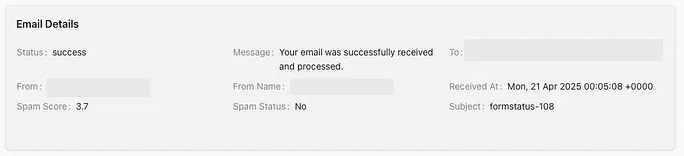
Section titled “Email details”When email testing is enabled, review the received message status and details. A successful submission alone does not confirm that the expected email was received.
After fixing the suspected cause, run another manual test to verify the form.